


Tennessee prison chief resigns, executions halted after failed Christa Pike execution
Botched lethal injection attempts leave Tennessee death row inmate Christa Pike in critical condition, prompting the resignation of the state’s prison chief. Gov. Bill Lee postpones all executions through 2026 as an independent review begins. UC Berkeley Law professor John Yoo analyzes the legal controversy and previews key cases as the Supreme Court prepares to kick off its new term.
NEWYou can now listen to Fox News articles!
Alabama Gov. Kay Ivey, a Republican, commuted the sentence of a death row inmate on Tuesday after the current Jefferson County district attorney and several former judges and prosecutors raised concerns about his conviction.
The governor said she was commuting Toforest Johnson’s death sentence to life in prison without parole. Johnson, who has long maintained his innocence, was convicted in the 1995 murder of Jefferson County Deputy Sheriff William Hardy. He remains incarcerated at the Holman Correctional Facility.
“When presented with Mr. Johnson’s case, I had concerns there was not enough direct evidence to carry out the most serious punishment, death,” Ivey said in a statement. “My decision is not a determination of innocence, but a recognition that the circumstances of this case justify commuting his death sentence to life imprisonment, without possibility of parole.”
Ivey has commuted the death sentences of three death row inmates since she became governor in 2017. She has also overseen 27 executions during her tenure, which will end in January because she is term-limited and cannot run for re-election.
GOP GOV DEWINE URGES OHIO TO ABOLISH THE DEATH PENALTY, SAYS IT IS NO LONGER A DETERRENT
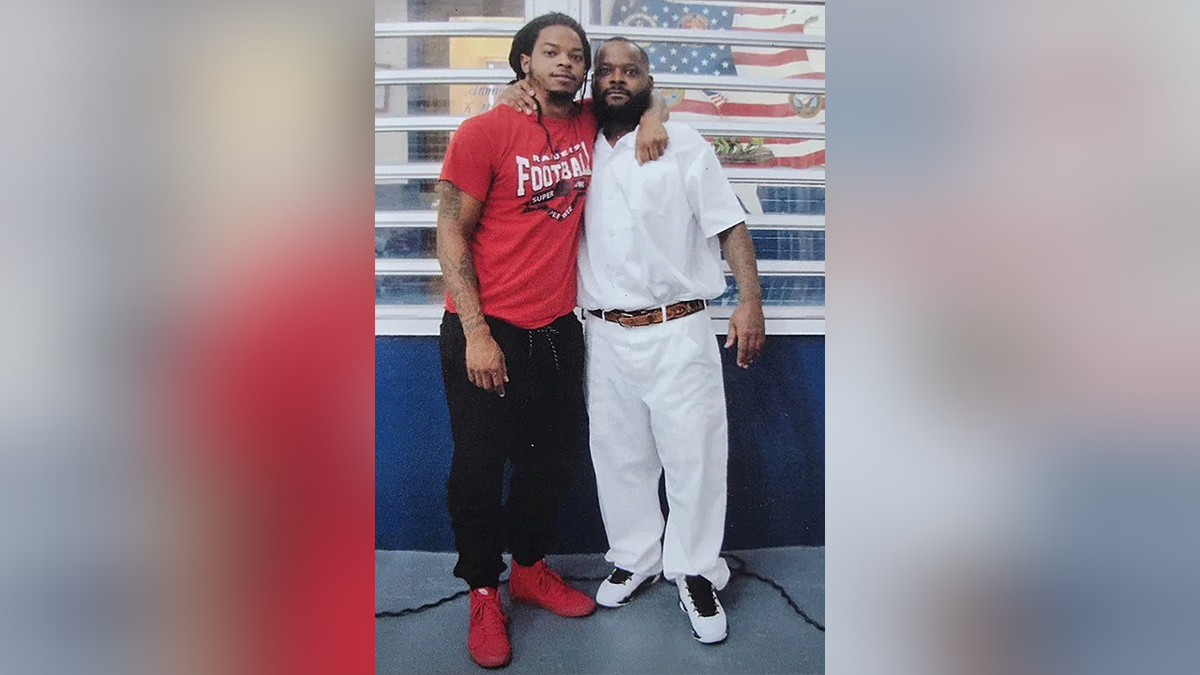
Toforest Johnson (right) poses for a photo with his son, Robby Foster. (Johnson Family via AP)
The governor spared his life despite Alabama Attorney General Steve Marshall urging her last week to reject the clemency request and “respect the jury’s decision” and the rulings of the courts reviewing Johnson’s case.
On July 19, 1995, Hardy was shot twice in the head as he was working off-duty security outside a hotel in Birmingham. Johnson said he was on the other side of the city when the shooting happened.
One of Johnson’s attorneys, Ty Alper, said he and his client are grateful to Ivey for “diligently reviewing Toforest’s case and taking action to spare an innocent man from execution,” but added that they will continue to fight to overturn the conviction.
“Toforest Johnson is innocent. Now it is up to the courts to overturn his conviction and grant him a new trial. We will keep fighting until he is home with his family,” Alper said in a statement.
LAWYERS, EXPERTS URGE TENNESSEE GOVERNOR TO COMMUTE CHRISTA PIKE’S SENTENCE AFTER BOTCHED EXECUTION
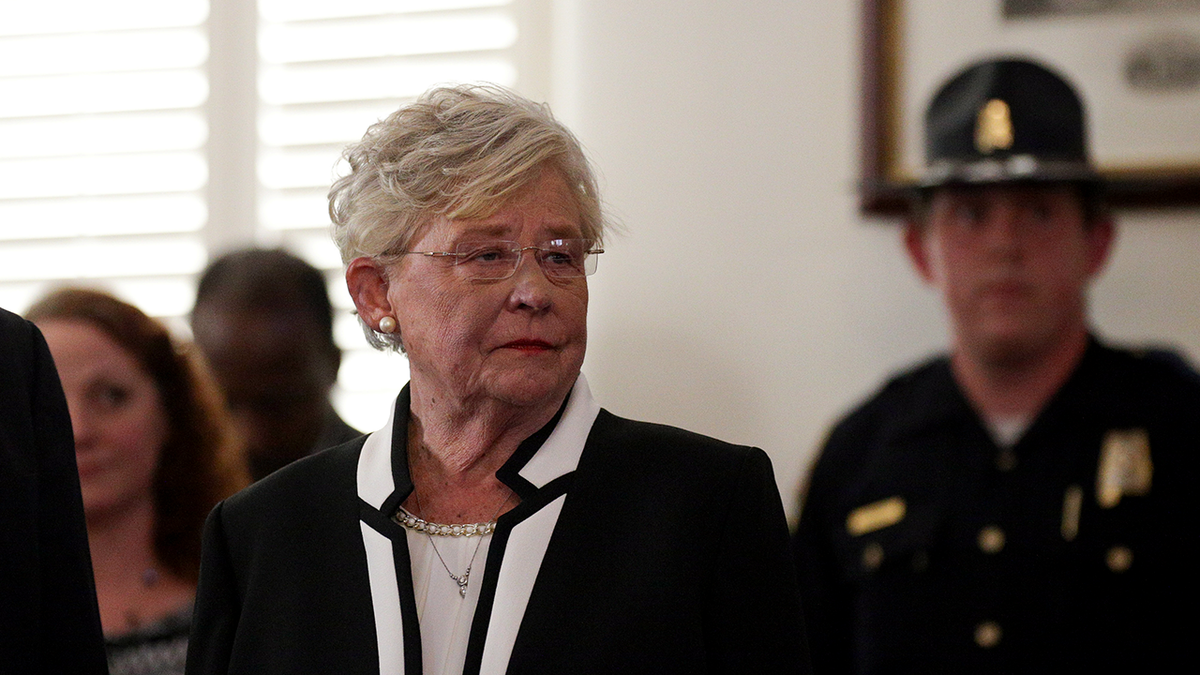
The governor said she was commuting Toforest Johnson’s death sentence to life in prison without parole. (REUTERS/Marvin Gentry)
Johnson’s attorneys have waged a yearslong legal battle to secure a new trial. His push for a new trial has received national attention and attracted widespread support, including from prominent lawyers, such as the original prosecutor in his case, as well as celebrities such as Kim Kardashian.
Several former judges and prosecutors have joined supporters seeking a new trial for Johnson over questions about his conviction. Former Alabama Attorney General Bill Baxley, former Chief Justices of the Alabama Supreme Court Sonny Hornsby and Drayton Nabers and other former judges and prosecutors have submitted briefs or written editorials backing a new trial.
Jefferson County District Attorney Danny Carr, who was elected in 2018, is among those who have backed Johnson’s call for a new trial. In 2024, Carr wrote in a court filing that the “evidence in this case has unraveled over 20 years.”
Carr said that credible alibi witnesses place Johnson in another area at the time of the shooting. He also said there are multiple reasons to doubt the key prosecution witness, who “claimed she overheard Johnson confess to the murder on a three-way phone call on which she was eavesdropping.”
LONGEST-SERVING US PRISONER DIES AT 101 AFTER ESCAPING DEATH PENALTY 8 TIMES
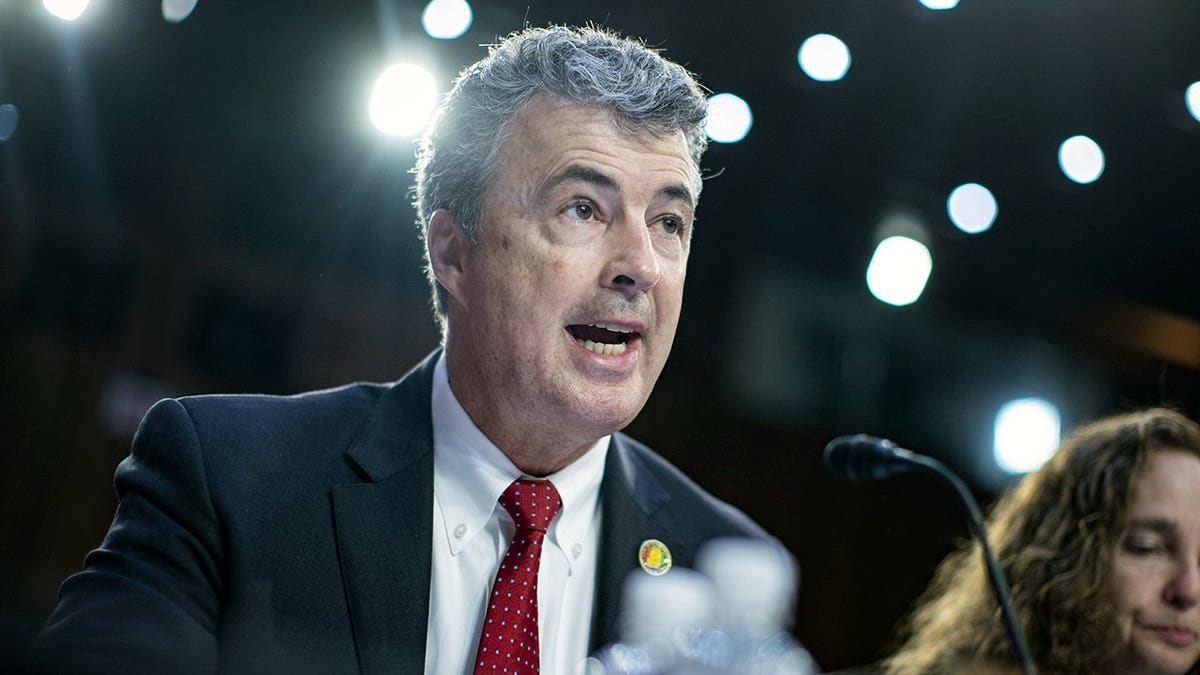
Alabama Attorney General Steve Marshall urged the governor last week to reject the clemency request and “respect the jury’s decision” and the rulings of the courts. (Al Drago/Getty Images)
CLICK HERE TO DOWNLOAD THE FOX NEWS APP
The woman testified during Johnson’s 1998 trial that she was eavesdropping on a phone call when she heard a man she believed was Johnson admitting to the shooting.
She received a $5,000 reward in 2001 for her assistance in the case.
Johnson’s lawyers said that the state withheld evidence of monetary incentive for her testimony.
The Associated Press contributed to this report.